Built to Improve ROAS, AOV, and Conversions
Why This Setup Matters
Most tracking systems only show surface-level numbers.
This setup is what allows Visiopt to show you what is truly increasing:
- ROAS
- AOV
- Conversions
Instead of guessing which tests, pages, or campaigns are working, you’ll be able to see exactly how each part of your funnel contributes to revenue — both individually and as a whole.
What This Setup Does
This GoHighLevel setup allows you to:
- Track your main product and each upsell separately
- Track total revenue across all products at the same time
- See how tests, campaigns, and traffic sources impact each step of your funnel
- Get a clear, holistic view of what’s working — and what’s not
This level of insight is what makes smarter scaling decisions possible.
Step 1: Create Webhooks in Visiopt
1. Settings page > Payment Processing and carts
2. Select Go High Level:
3. Create one webhook for each main product and upsell you wish to track individually. Plus create one additional webhook and name it Total Revenue
Webhook | Purpose |
Webhook 1 | Product A Revenue |
Webhook 2 | Product B Revenue |
Webhook 3 | Product C Revenue |
Webhook 4 | Total Revenue (All Product (A,B and C)) |
4. Should look something like this when done:
This setup allows you to:
- See performance for each product and upsell separately
- Track total revenue across the entire funnel at the same time
Step 2: Add All Webhooks to the GoHighLevel Workflow
1. Login GoHighLevel > Dashboard > Workflow
2. Go to Automation in the left side bar
3. Click Create Workflow
4. Select the Trigger Webhook (Purchase / Order Submitted / Payment Received)
Within the same :ion type
6. Add a Webhook action for each Visiopt webhook you created
7. Select Webhook as the action type
8. Select Method: POST
9. Paste each Visiopt Webhook URL, one at a time
10. Save the action
11. Repeat these steps for each Visiopt webhook you created (product-level and total revenue).
When a purchase occurs, all webhooks will fire together.
This is expected and required. Each webhook serves a different purpose — individual product tracking and total revenue tracking — giving you a complete and accurate view of performance.
Note: If your main product and upsell products are in separate GoHighLevel workflows, be sure to add each webhook to its appropriate workflow.
Step 3: Set Up Visiopt Rules (Important)
This step ensures revenue is recorded correctly for each product and for your funnel as a whole.
Product-Specific Webhooks
For each product or upsell webhook:
- Add a Product filter rule
- Select the matching product for that webhook
This ensures each webhook only counts revenue for that specific product.
Example:
Webhook | Rule Required |
Product A | Filter By Product A |
Product B | Filter By Product B |
Product C | Filter By Product C |
To set up rules, check the Webhook Rule checkbox:
From the first dropdown, select "order['productName']" From the second dropdown, select Includes In the third field, enter the product name: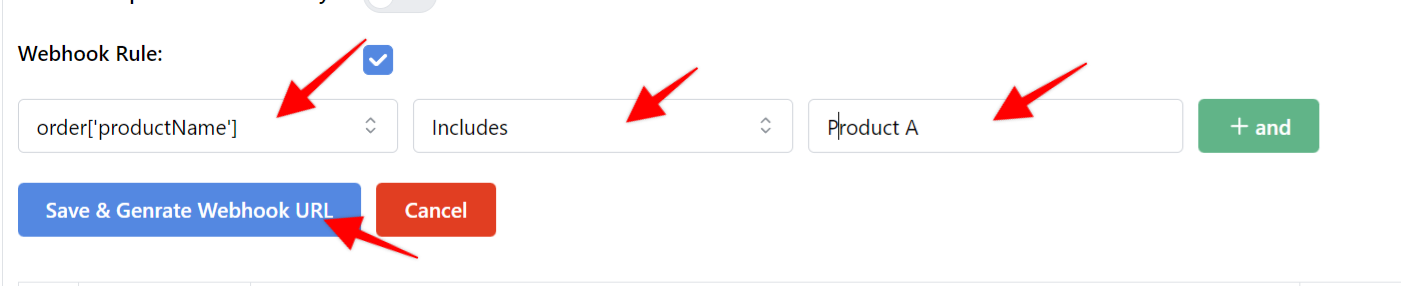
Do the same for each product!
Product A:
Product B:
Product C:
Total Revenue Webhook (Critical)
- The Total Revenue webhook does not use any filters
- It automatically collects revenue from all products
Important: Be sure to add the Total Revenue webhook to all workflows (main order workflow and any upsell workflows).
This is what allows Visiopt to show accurate total revenue across your entire funnel.
Step 4: Partial Product Revenue (Special Case)
Use this option only if your workflow contains products you do not want included in total revenue reporting.
Scenario
- Your workflow includes 5 products
- You only want to track revenue from 3 of them
What to Do
- Add product filter rules to the Total Revenue webhook
- Select only the products you want included
This ensures total revenue reflects only the selected products.
Step 5: Multiple Workflows (Main Sale + Upsell)
Use this setup when your funnel is split across workflows.
Scenario
- Main Sale → Workflow 1
- Upsell(s) → Workflow 2
- You want the combined revenue from both
Setup Steps
- Create one common Total Revenue webhook in Visiopt
- Add this same webhook URL to:
- Main Sale Workflow
- Upsell Workflow
- No rules are required on the Visiopt side (only revenue-related products exist)
Visiopt will automatically combine revenue from both workflows into a single, accurate total.
WorkFlow for the Main Sale
Workflow for the Upsell
Final Notes
- Do not remove or rename webhooks after launch without checking with the Visiopt team
- Always test with a real or $1 purchase to confirm setup
- If new products or upsells are added later, create new product-level webhooks
- Ensure the Total Revenue webhook remains active across all revenue workflows
Comments
0 comments
Please sign in to leave a comment.