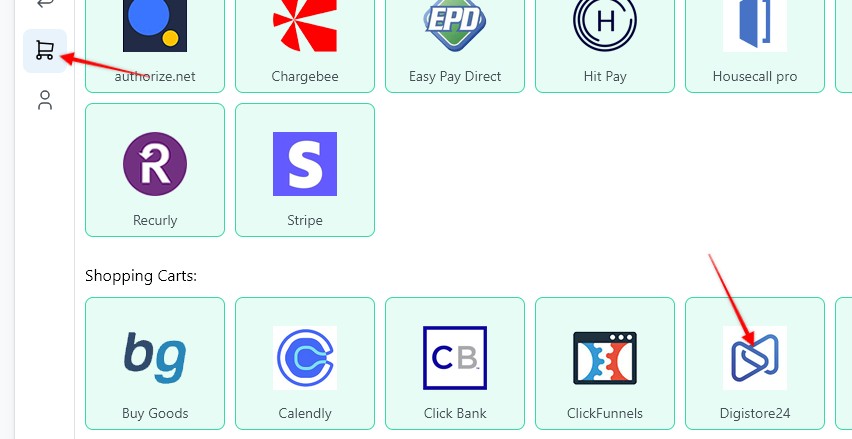
1. To create a webhook, go to the Settings page > Payment Processing and Carts > Digistore24
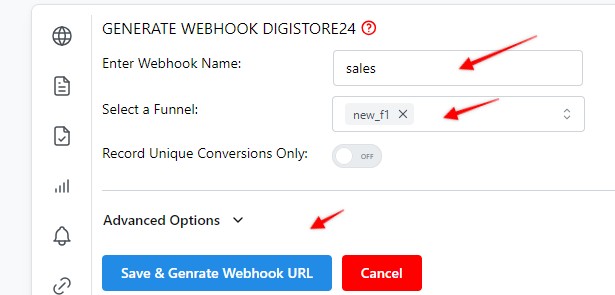
2. Enter a Webhook name, select the Funnel to associate the webhook with, hit Save and Generate Webhook URL
3. Copy the webhook URL

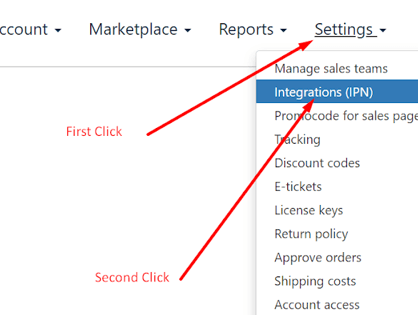
4. Log in to digistore24 account then click the Settings link and select the Intergations (IPN) option.
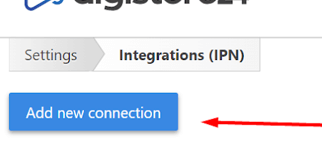
5. Then click the "Add new connection" button.
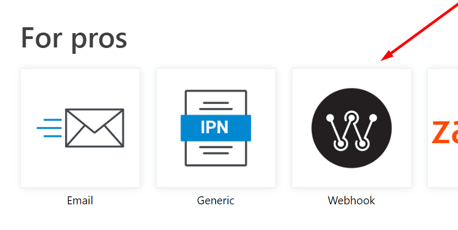
6. Then click the "Webhook" thumnail.
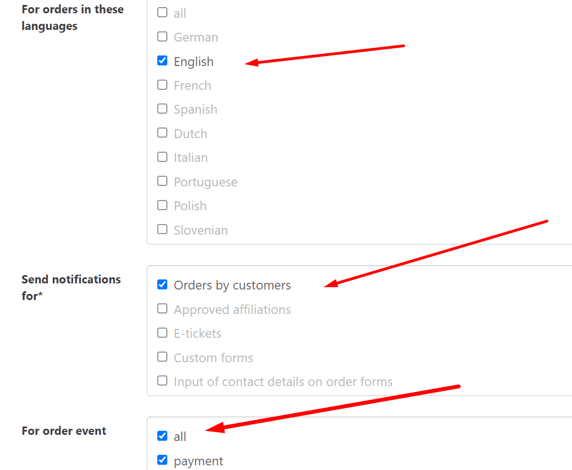
7. Select the options shown below
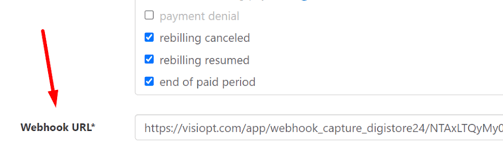
8. Then paste in the Visiopt webhook URL (copyed in step 3) and click Save.
Learn how to add the VisiSmart code to Digistore24 checkout page
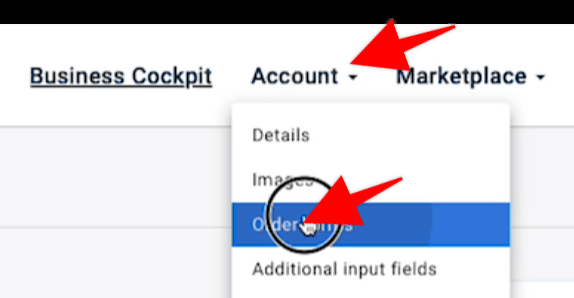
1. Log in to Digistore24, select the proper Vendor. Then from the Account menu select the "Order forms" option:
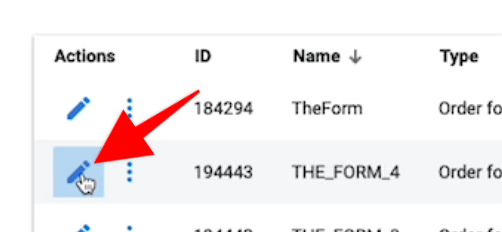
2. Click to edot the proper orderform
3. Add a "Custom HTML / CSS" element to the very top of the page:

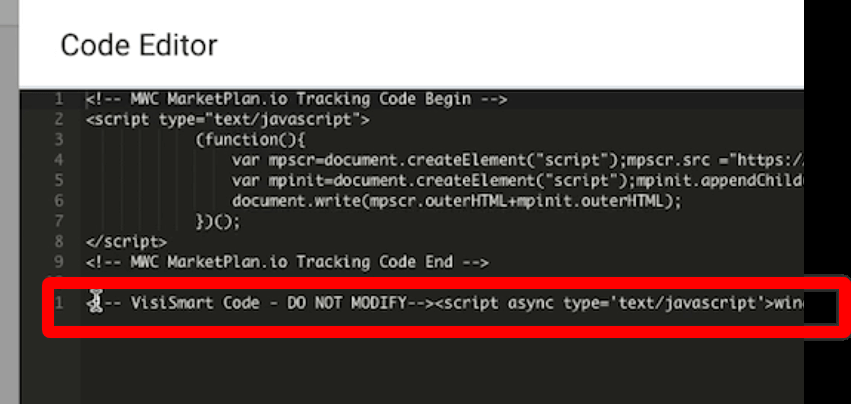
4. Open the Custom HTML element and paste in the VisiSmart code, then hit Save:
5. Republish the page.
Comments
0 comments
Article is closed for comments.