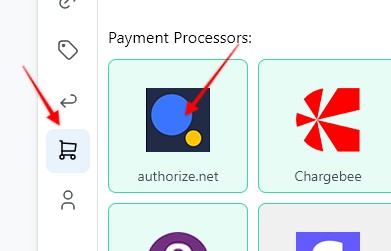
1. To create a webhook, go to the Settings page > Payment Processing and Carts > Authorize
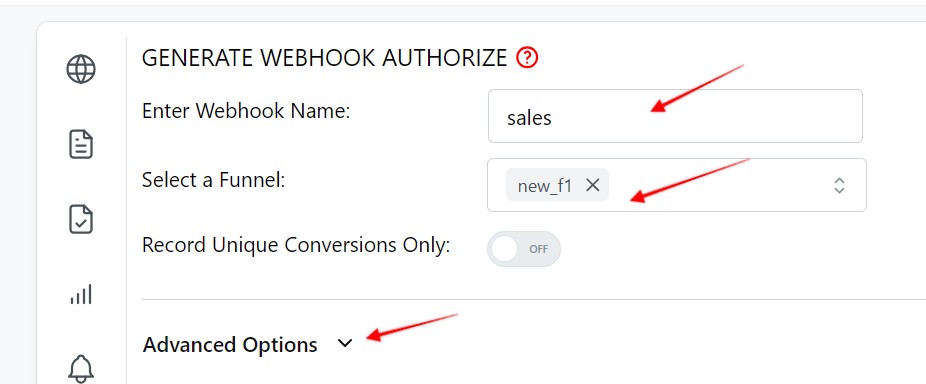
2. Enter a Webhook name, select the Funnel to associate the webhook with, then, click on the Advanced Options
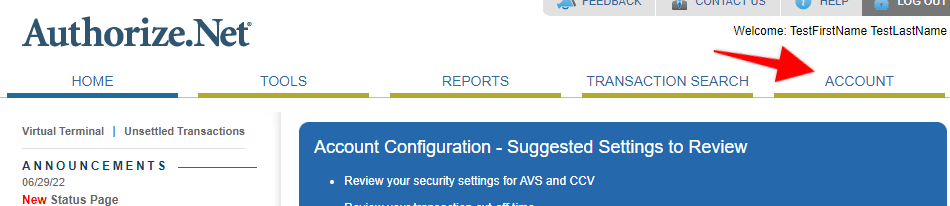
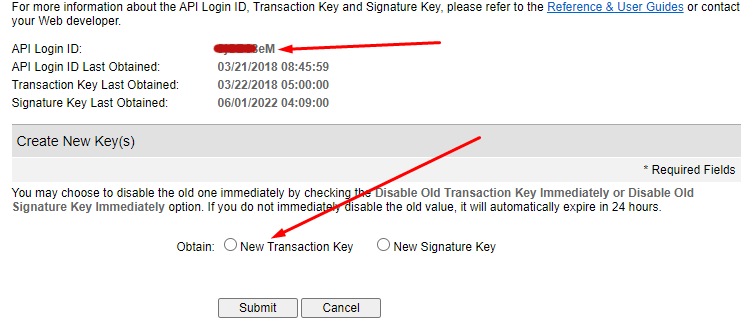
3. Next, connect Authorize.net by entering the Login ID and Authorization Key. Log in to Authorzie.net click on the "Account" link
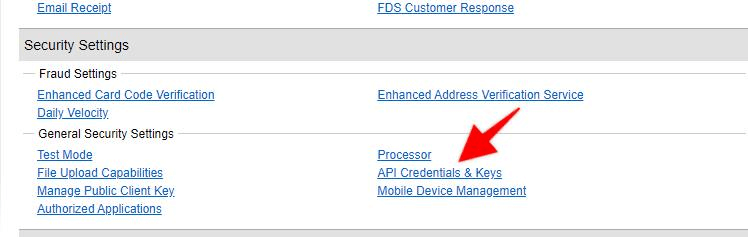
4. Then under the "Security Settings" section click on the "API Credentials & Keys" link
5. Copy the "API login Id" and create a new "Transaction key" copy both
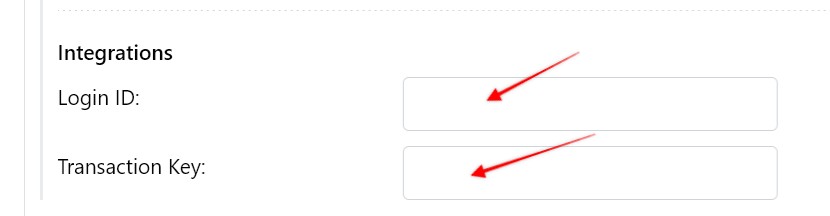
6. Head back to Visiopt and paste the "API login Id" and the "Transaction key"
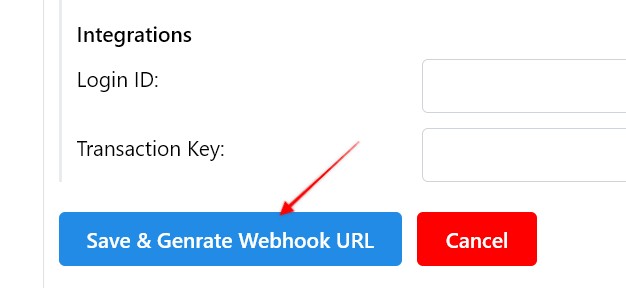
7. Hit Save and Generate Webhook URL

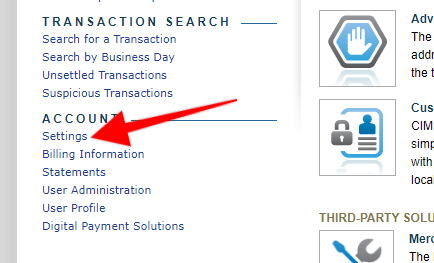
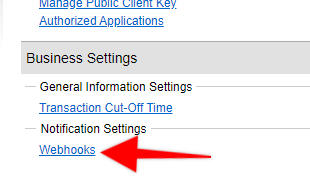
9. Log in to Authorize.net, and click on the "Settings" link in the left side bar
10. In the "Business Settings" section, click on the "Webhooks" link at the bottom
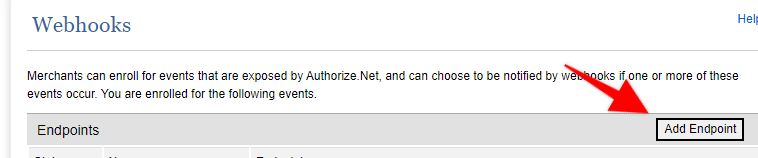
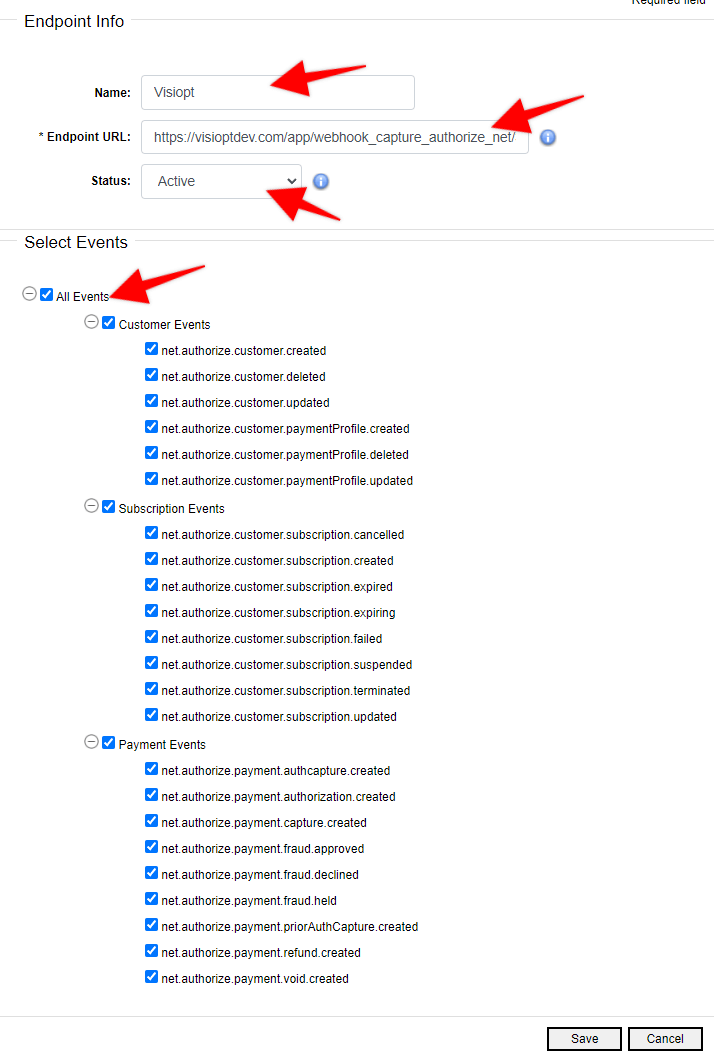
12. Enter Name for the webhook
Paste in the URL copied from Visiopt
Set status to Active
Select all events
Some carts and processors will send a separate webhook notification for the main sale and each upsell purchased. This will cause multiple conversions to be recorded.
For simple instructions to stop this click HERE.
Comments
0 comments
Article is closed for comments.