1. Set up your Vwebhook on the Settings page > Payment Processing and Carts > Shopify
To track Registration:
2. Enter a name for your Webhook > Select funnel to apply the webhook to > Hit Save & generate wWebhook URL. Set up the foloowing rule to track registrations:
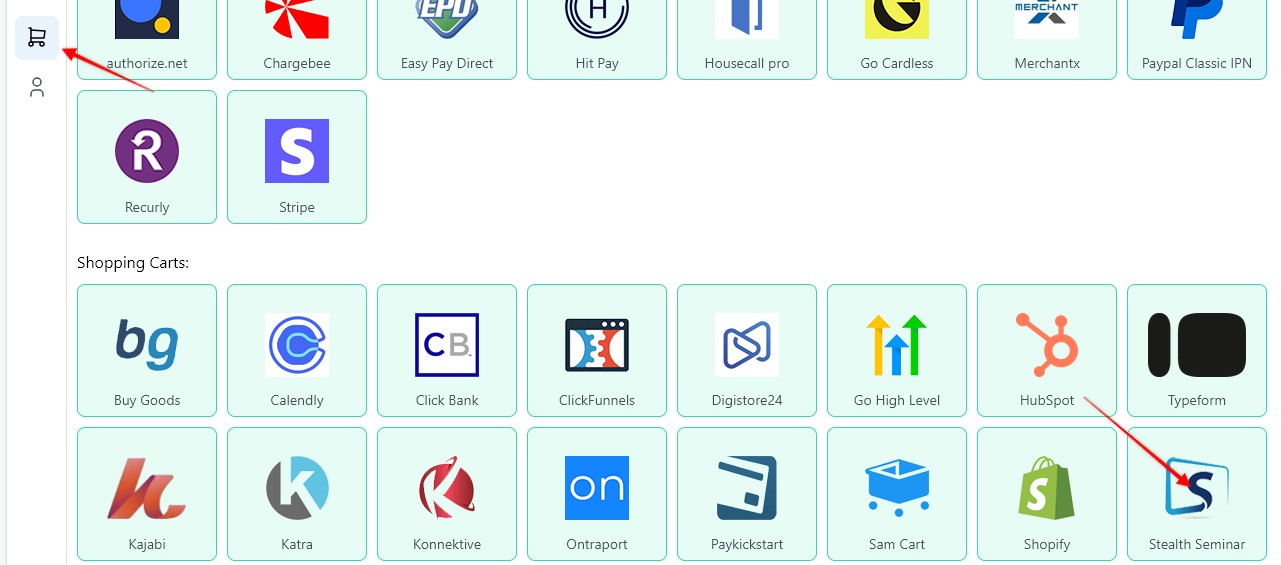
3. Copy the webhook URL, and hit Save
4. Go to your StealthSeminar account, open the webinar where you want to set up the webhook, and click the Edit button.
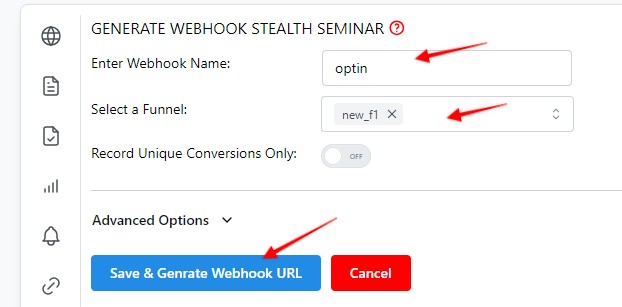
5. Navigate to the Plugins tab → Click on Stealth Power Webhook → Click Add Connection.
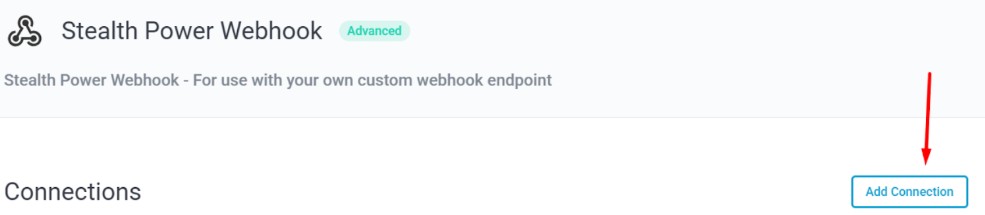
6. Add the copied webhook URL as shown here:
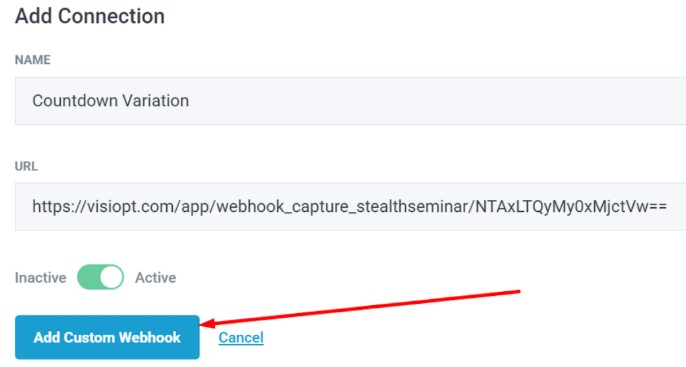
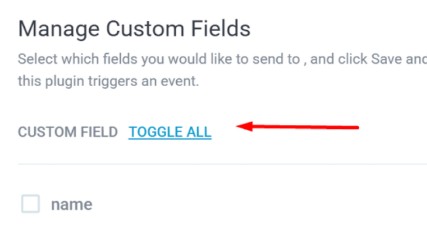
7. You’ll see the following screen. Click Toggle All and then click Save and Apply.
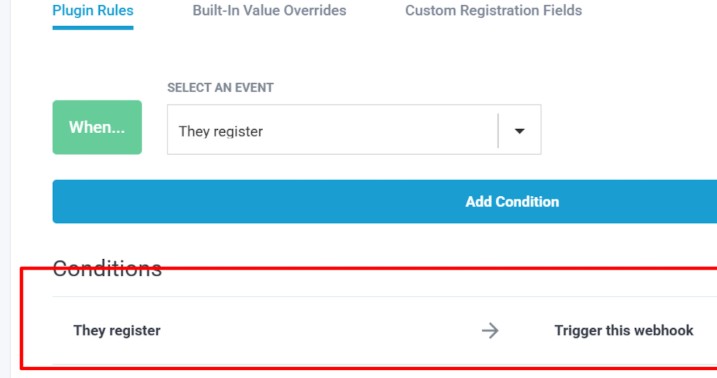
8. After saving, go back to the Webinar List page → Click Edit again → Go to the Plugins tab. You’ll now see the webhook setup as shown here:

9. Click View, and while updating the Countdown Variation webhook, select Event = They Register, then click Add Condition.
To track Attendance:
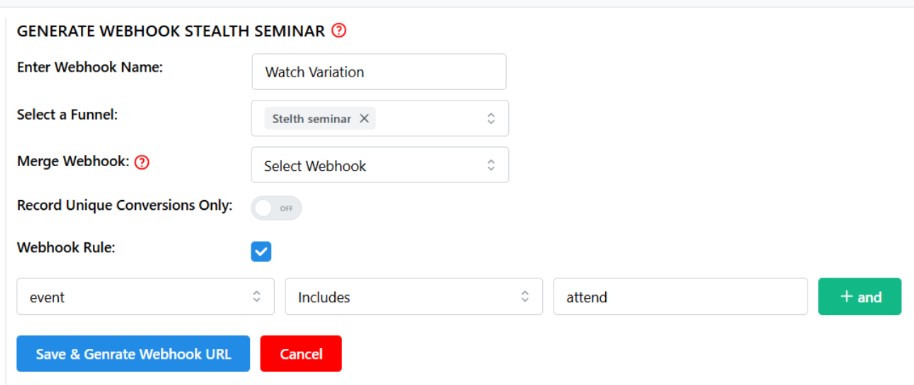
10. Enter a name for your Webhook > Select funnel to apply the webhook to > Hit Save & generate wWebhook URL. Set up the foloowing rule to track registrations:
11. Copy the webhook URL and repeat the same process in StealthSeminar > Edit the desired webinar > Go to the Plugins tab > Click Stealth Power Webhook > Add Connection
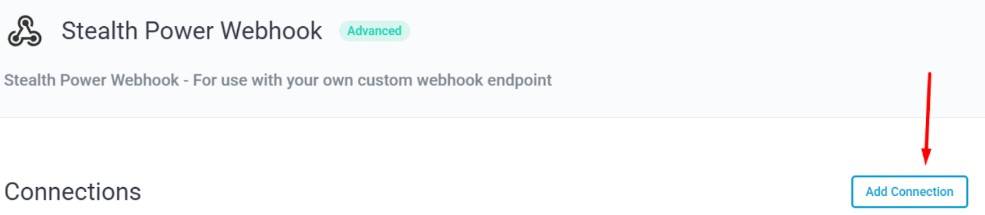
12. Add the webhook as shown here:
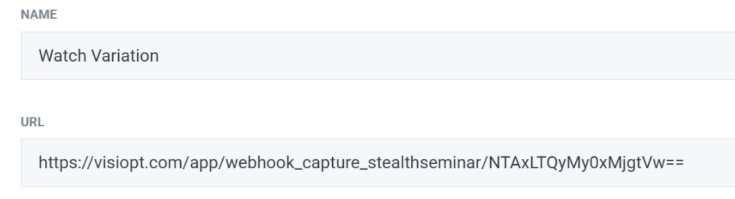
13. Then click Toggle All > Save and Apply.
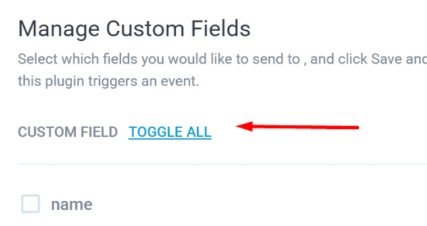
14. To verify, go back to the webinar list and check the Plugin tab again.

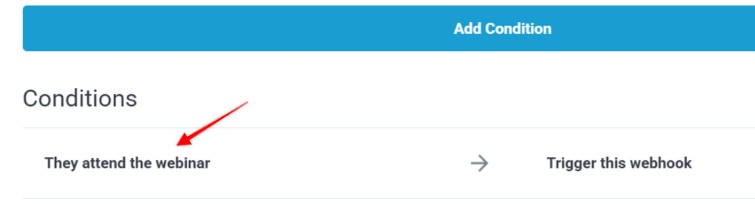
15. While updating the Watch Variation webhook, select Event = They Attend the Webinar, then click Add Condition.
Comments
0 comments
Please sign in to leave a comment.