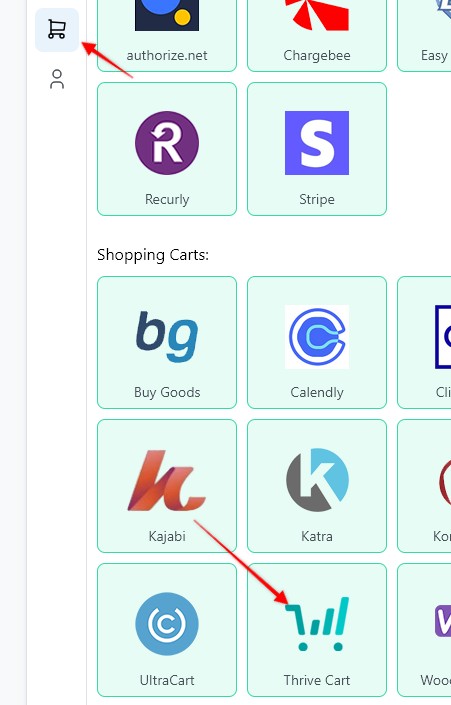
1. To create a webhook, go to the Settings page > Payment Processing and Carts > ThriveCart
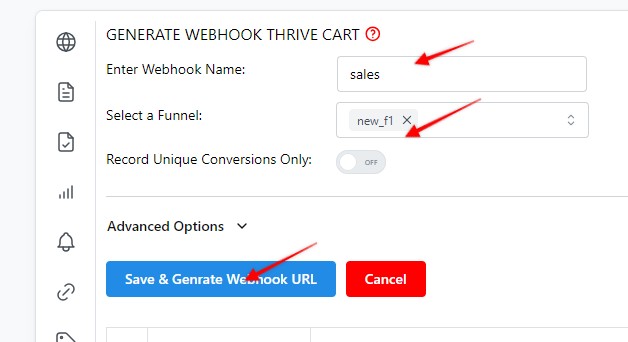
2. Enter a Webhook name, select the Funnel to associate the webhook with, hit Save and Generate Webhook URL
3. Copy the webhook URL

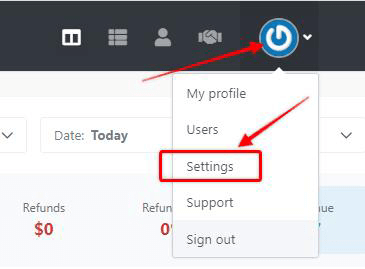
4. Log in to Thrive Cart and select Settings from the top roght drop-down menu
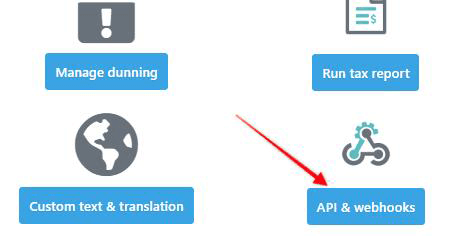
5. Click on the "API & Webhooks" button
6. Click on the 'View settings" button in the "Weebhooks & notifications" section

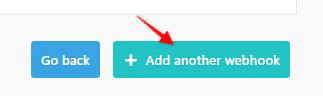
7. Click on the '+ Add another webhook" button
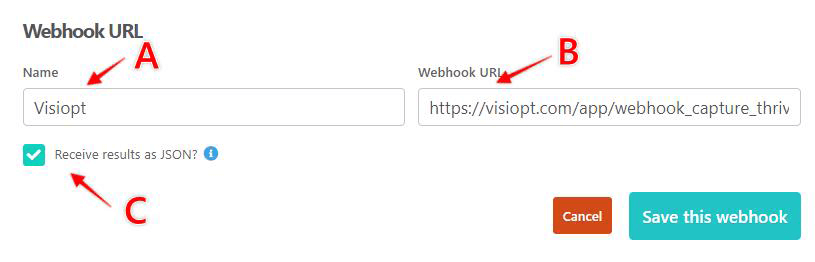
8. A: Name your webhook; B: Paste the URL copied in step 3; C: Check the "Receive results as JSON" checkbox. Save the webhook
Some carts and processors will send a separate webhook notification for the main sale and each upsell purchased. This will cause multiple conversions to be recorded.
For simple instructions to stop this click HERE.
Learn how to add the VisiSmart code to ThriveCart checkout page
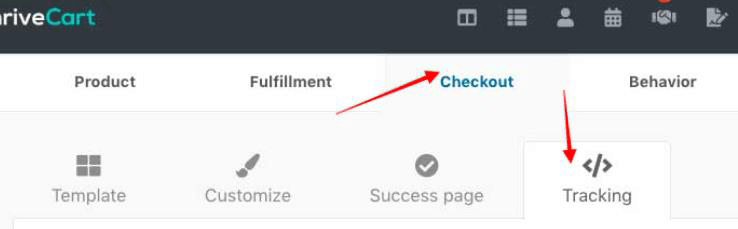
1. Log in to ThriveCart, head over to the "Checkout" tab and then choose the "Tracking tab"
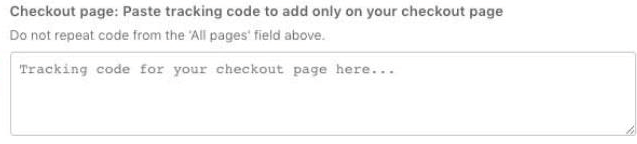
2. Then find the "Checkout page only" field, and paste in the VisSmart script
Comments
0 comments
Article is closed for comments.