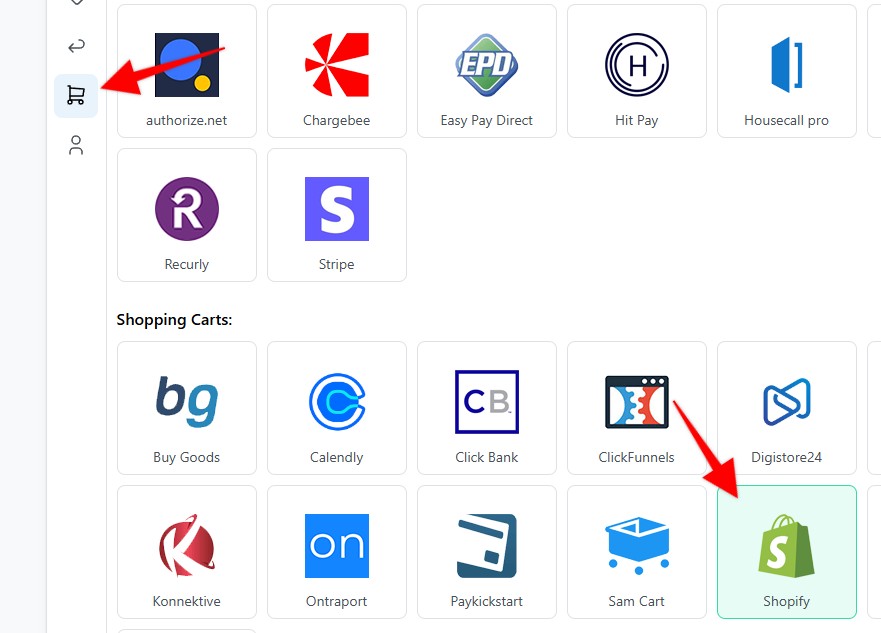
1. Set up your Webhook on the Settings page > Payment Processing and Carts > Shopify
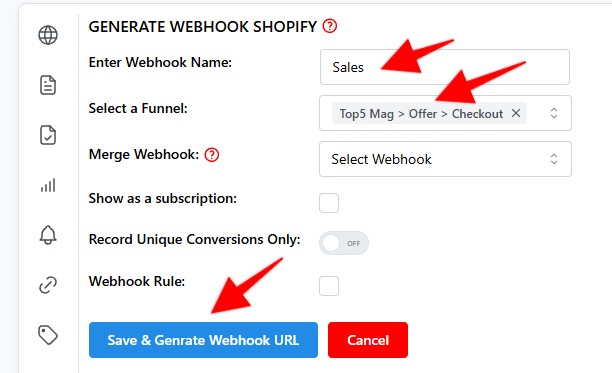
2. Enter a name for your Webhook > Select funnel to apply the webhook to > Hit Save & generate Webhook URL
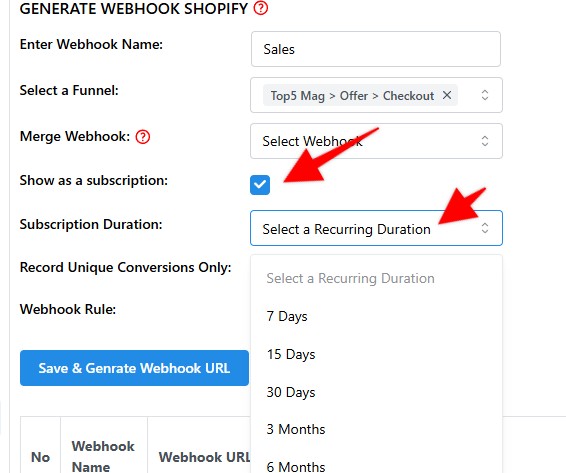
3. Additionaly, you can mark the webhook as subscription by clicking on the Show as a subscription checkbox > Select the desired Recurring duration
4. Copy the webhook URL, and hit Save
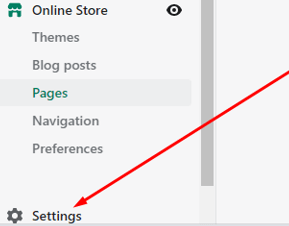
5. Log in top Shopify, and click on the settings link in the bottom of the left sidebar
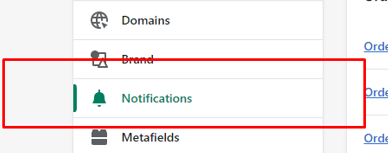
6. Click on "Notifications"
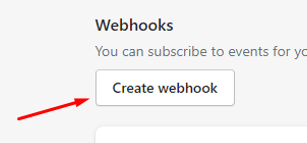
7. Click on the "Create webhook" button
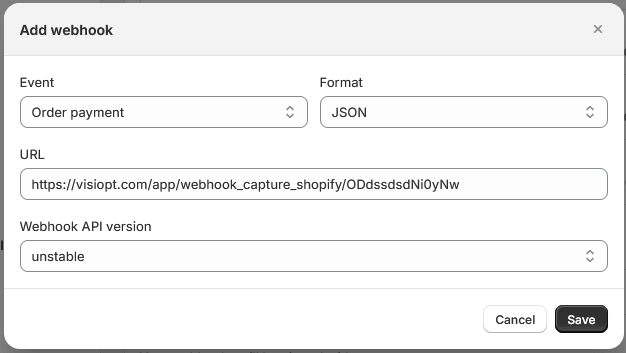
8. As Event select the "Order Payment". Then paste in the URL copied from Visiopt, and hit "Save"
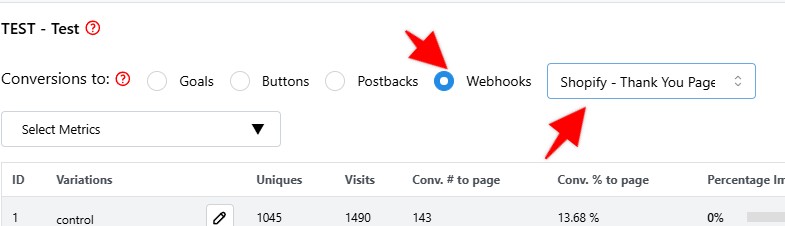
9. To see the webhook stats in your test, on the test result page choose the webhooks option > Then select your webhook from the dropdown
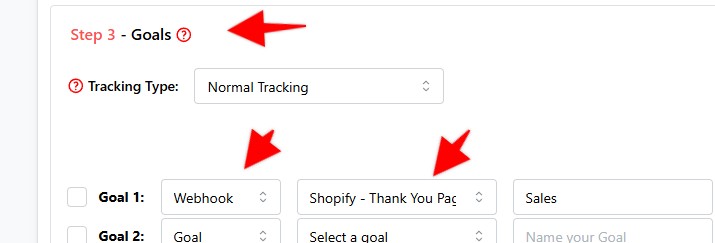
10. To see the webhook stats in your campaign, in step 3 of the campaign setup, set Webhook as the goal type > Then select your webhook from the dropdown
Some carts and processors will send a separate webhook notification for the main sale and each upsell purchased. This will cause multiple conversions to be recorded.
For simple instructions to stop this click HERE.
Comments
0 comments
Article is closed for comments.