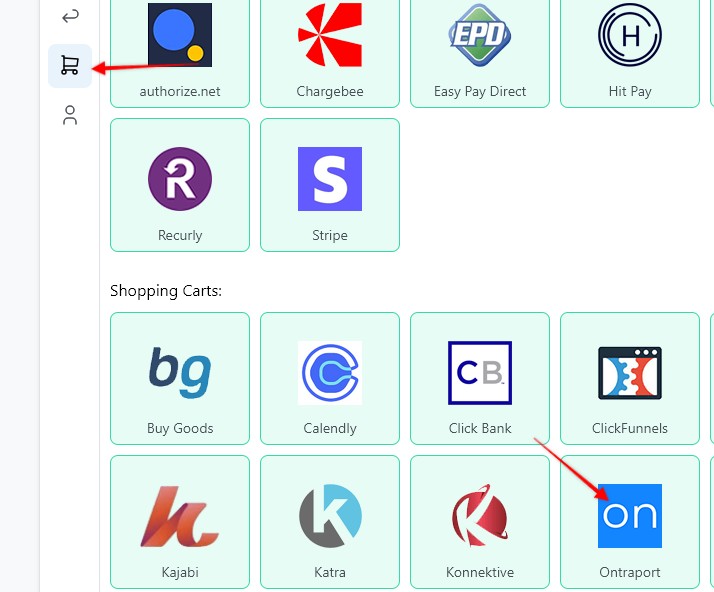
1. To create a webhook, go to the Settings page > Payment Processing and Carts > Ontraport
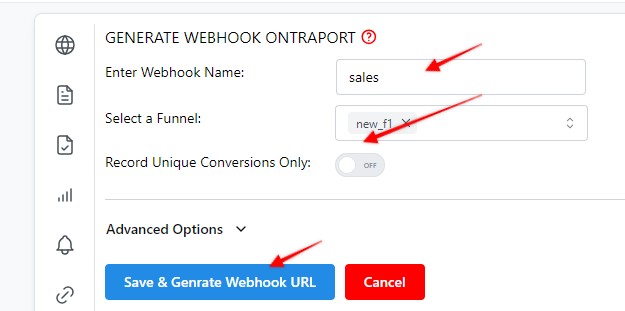
2. Enter a Webhook name, select the Funnel to associate the webhook with, hit Save and Generate Webhook URL
3. Copy the webhook URL

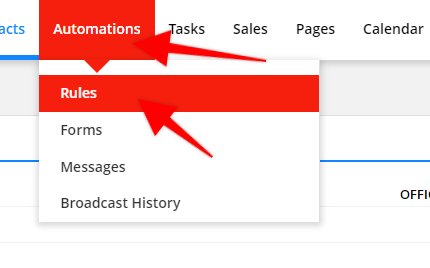
4. Log in to Ontraport, then in the top menu select "Automations" and then click on the "Rules" option
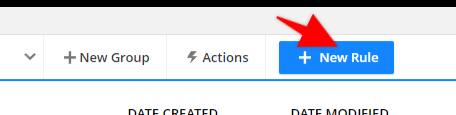
5. Click on "+ New Rule"
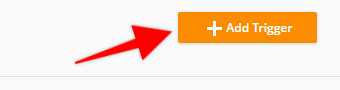
6. Then click on the "+ Add Trigger" button
6a. Each test and / or each unique campaign will use a different webhook.
If you have multiple products in a single test or campaign that you want to track and trigger a webhook for then choose "All Products".
This will trigger the same webhook regardless of which product is purchased.
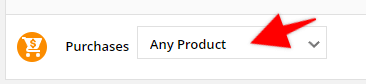
6b. If you are tracking different tests and campaigns and are creating more than 1 webhook inside of Visiopt than you can create a new webhook rule for each product as shown here.
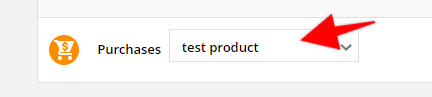
6c. If you ever require multiple webhooks for the same product because the same product is in use for different tests or campaigns it is possible to create multiple rules all using "All Products" and use a different webhook for each.
This is the least desired option because each product will send Visiopt multiple webhooks BUT Visiopt is able to apply the proper webhook to the proper test or campaign.
Again, use this option only if absolutely required.
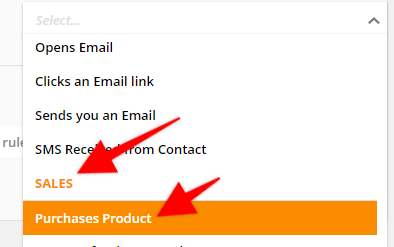
7. Then under the "Sales" section, select on the "Puchase Product" option
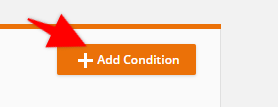
8. Click on the "+ Add Action" button
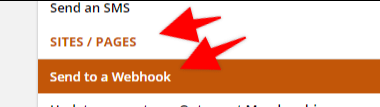
9. Then under the "Sites / Pages" section, select on the "Send to a Webhook" option
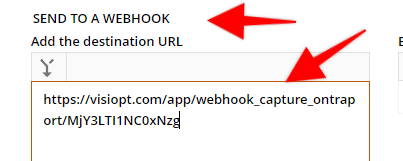
10. In the "Send to a Webhook" section paste in the webhook URL copied from Visiopt (Step 3)
11. In the "Select webhook method" section select "post"
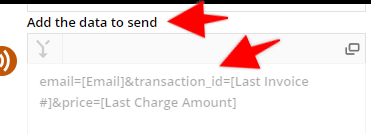
12. In the "Add the data to send" paste in the following:
email=[Email]&transaction_id=[Last Invoice #]&price=[Last Charge Amount]
Learn how to add the VisiSmart code to Ontraport checkout page
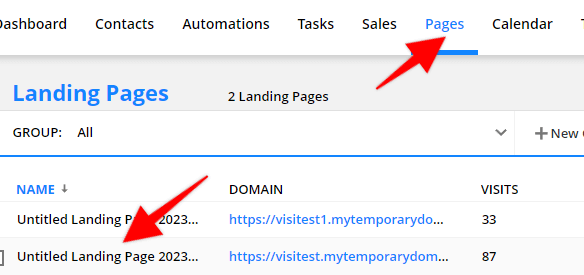
1. Log in to Ontraport, then in the top menu click "Pages", then click to edit the checkout page
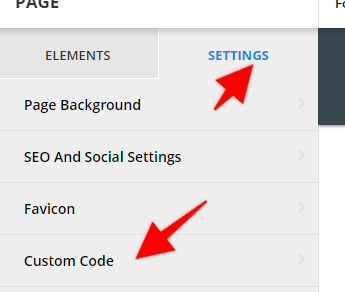
3. In the left side bar click on the "Settings" tab then select "Custom Code"
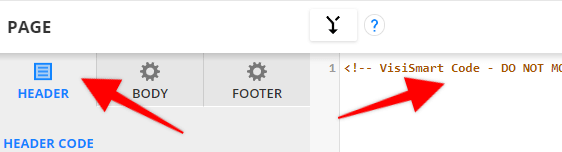
3. Then select the "Header" tab and paste in the VisiSmart code
Some carts and processors will send a separate webhook notification for the main sale and each upsell purchased. This will cause multiple conversions to be recorded.
For simple instructions to stop this click HERE.
Comments
0 comments
Article is closed for comments.