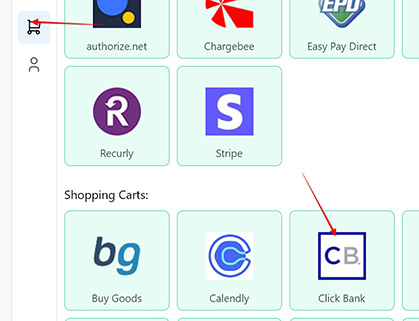
1. To create a webhook, go to the Settings page > Payment Processing and Carts > Click Bank
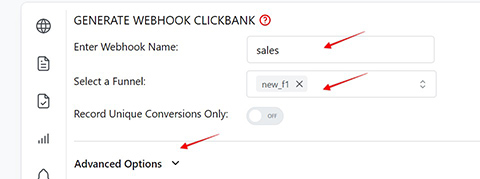
2. Enter a Webhook name, select the Funnel to associate the webhook with, then click on Advanced Options
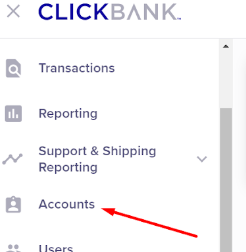
3. Log in to Click Bank and click on the Accounts menu from the sidebar.
4. Click on the Seller account

5. Click on the Vendor Settings link

6. Click My Site

7. In the Advanced Tools section, click on Edit

8. Enter a secret key (it can be any alpha-numaric combination, you will use the secret key in the following step). Do not save yet as in step 13 you will be pasting in the webhook you create.
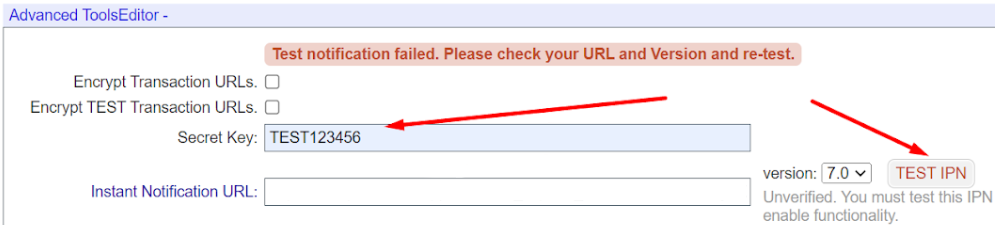
9. Head back to Visiopt webhook set up. Paste the secret key, and hit Save and Generate Webhook URL
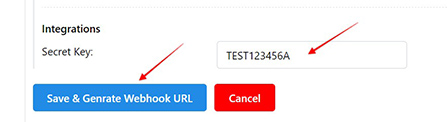
10. Copy the webhook URL

11. If you are using Clickbank’s shopping cart system you must make sure the Access Members Download page/members area page is added to your Visiopt funnel.
Because Clickbank does not allow code on their checkout or thank you pages this is where Visiopt will capture the customers email address to match the webhook with the proper test visit.
If the customer does not click on any of the buttons then email will not be captured, and conversion will not show. This will be very rare and you will still have conversions recorded from other pages within your funnel.
12. Copy the webhook URL, and hit Save
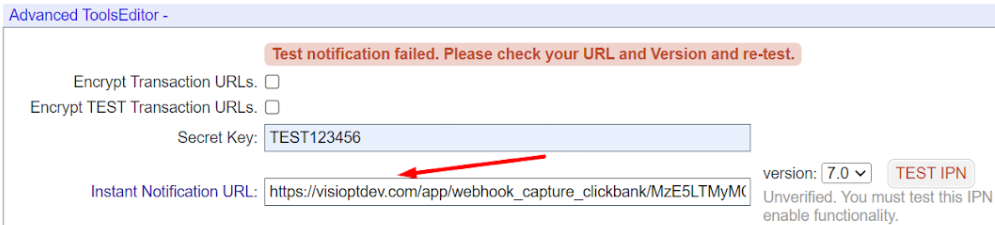
13. Go back to ClickBank. You will go to the exact location where you set up your secret key and paste in the webhook and save.
Some carts and processors will send a separate webhook notification for the main sale and each upsell purchased. This will cause multiple conversions to be recorded.
For simple instructions to stop this click HERE.
Comments
0 comments
Article is closed for comments.