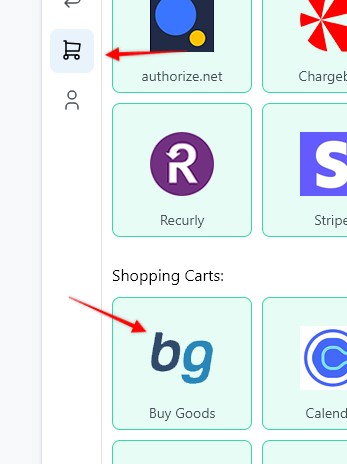
1. To create a webhook, go to the Settings page > Payment Processing and Carts > Buy Goods
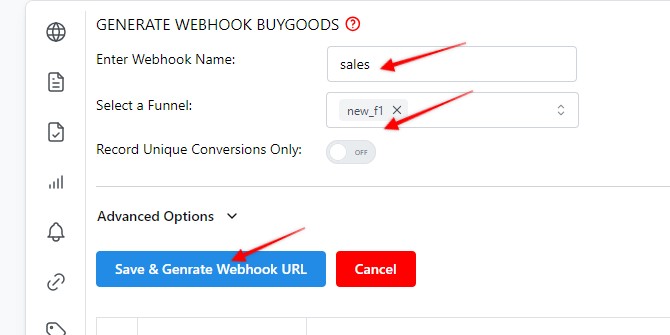
2. Enter a Webhook name, select the Funnel to associate the webhook with, hit Save and Generate Webhook URL
3. Copy the webhook URL

4. Log in to Buy Goods the select Setup > Products
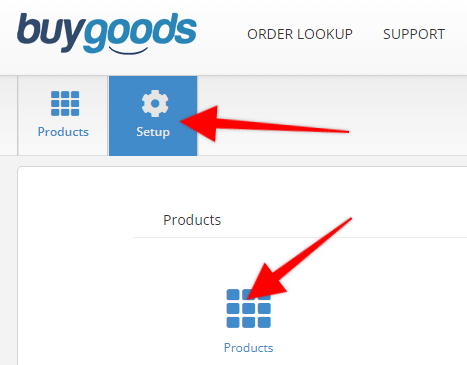
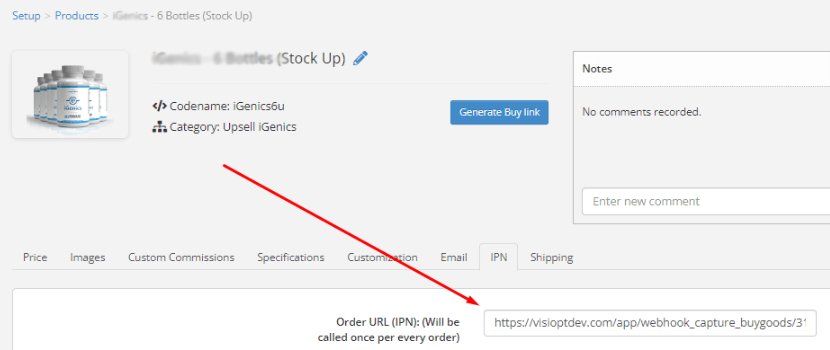
5. To track a specific product, click on the desired product
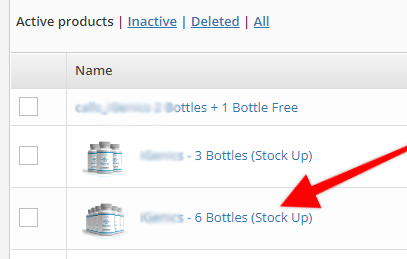
6. Then select the "IPN" tab, and paste in the Visiopt URL to the "Order URL (IPN):" field
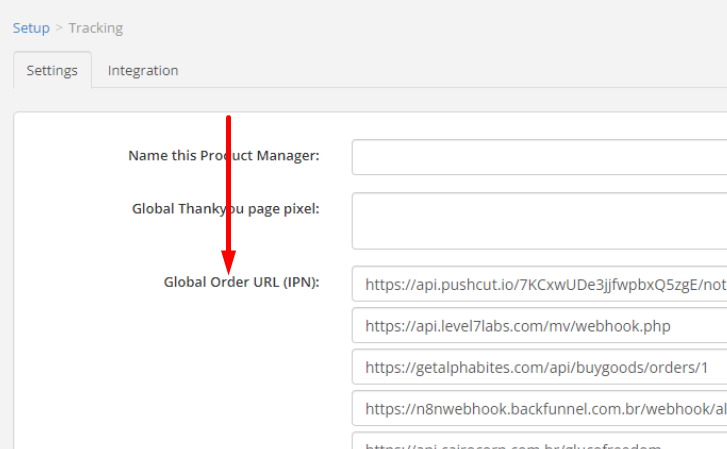
7. To track all the products with a single webhook, set up a Global webhook as shown below:
NOTE
Buy Goods will not provide you with access to your checkout page but Visiopt will still work properly. Simply be sure to add any page the customer is redirected after making a purchase to your Visiopt Funnel. This can be an upsell page or a thank you page.
NOTE
BuyGoods to treat the main order and upsell as a single transaction there is a simple solution.
In Visiopt funnel view you can change the page with the webhook to "record unique conversion only".
When you do this both the main order and upsell will be treated and recorded as a single conversion.
But keep the following details in mind:
If the transaction ID is the same then the total revenue from both transactions will also be added to the single conversion.
If the transaction IDs are different for upsell and main order then the upsell revenue will not be added.
For Buy Goods they usually send a separate/different transaction number for the upsell than the main transaction.
Some carts and processors will send a separate webhook notification for the main sale and each upsell purchased. This will cause multiple conversions to be recorded.
For simple instructions to stop this click HERE.
Comments
0 comments
Article is closed for comments.