Opt-in: Use for lead/signup/opt-in events where no purchase has occurred.
Sale: Use for purchase/transaction events where revenue is generated.
1. To create a webhook, go to the Settings → Payment Processing & Carts → Stripe.
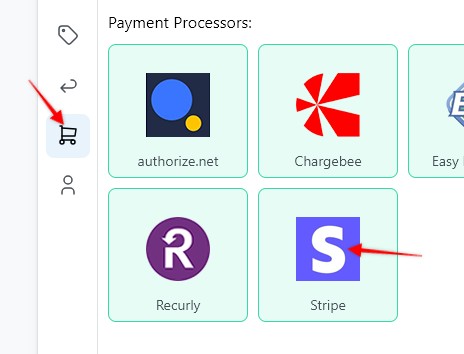
2. Fill in the following details:
- Webhook Name
- Funnel
- API Key
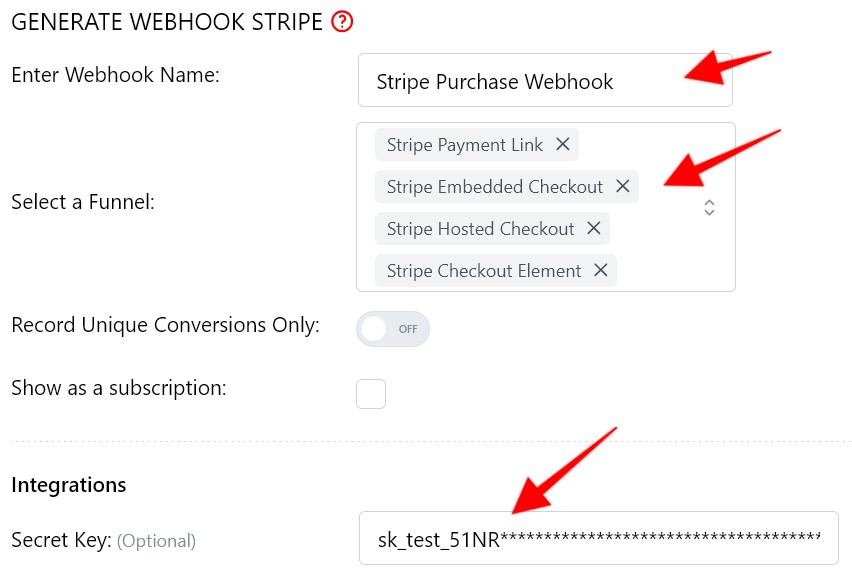
3. To track sales conversions, under Conversion Type, select Sales (Purchase).
4. Note: To create the webhook automatically without any manual setup, it is recommended to enter your Stripe integration credentials (API Key) in Visiopt before clicking Save & Generate Webhook URL.
Do not click Save yet. First, obtain your API credentials as described below.
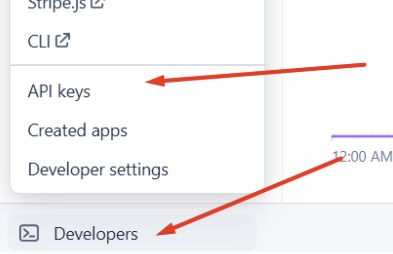
5. To get Your API Key log in to your Stripe Dashboard. Go to Developers → API keys.
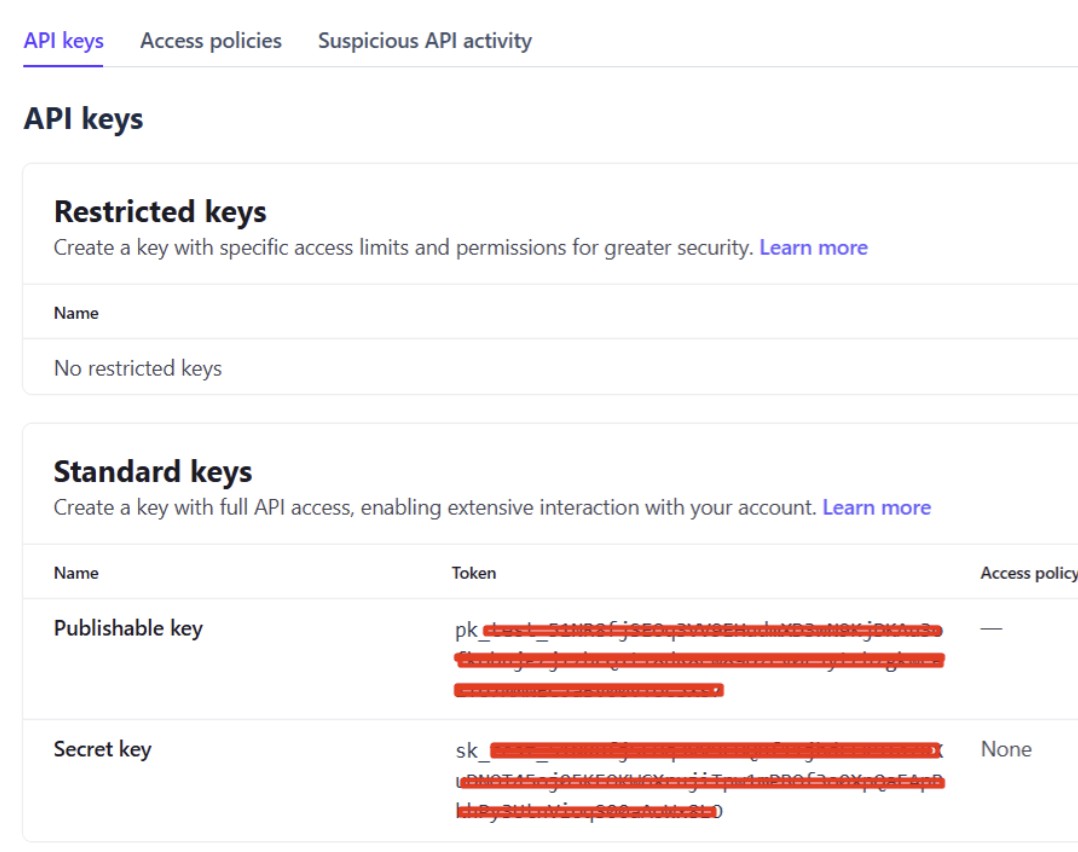
4. Locate your Secret key.
If you do not already have a usable Secret Key, create or reveal the key as required.
Copy the Secret Key.
Paste the API key in the appropriate place in Visiopt webhook setup, and click Save & Generate Webhook URL. Visiopt will generate a webhook URL and automatically create the webhook in your Stripe account.
If no error message is displayed, the webhook was most likely created successfully.
Verify the Webhook
To confirm that the webhook was created successfully:
1. Log in to your Stripe account.
2. Navigate to Developers → Webhooks.
3. Look for the webhook endpoint created by Visiopt.
If you can see the VisiOpt webhook URL in the list, your integration is complete and ready to use.
Don't want to connect via API? Create webhook manually.
1. In Visiopt hit Save & Generate Webhook URL without entering the API details. Then copy the generated URL.
2. Log in to your Stripe account, navigate to Developers → Webhooks.
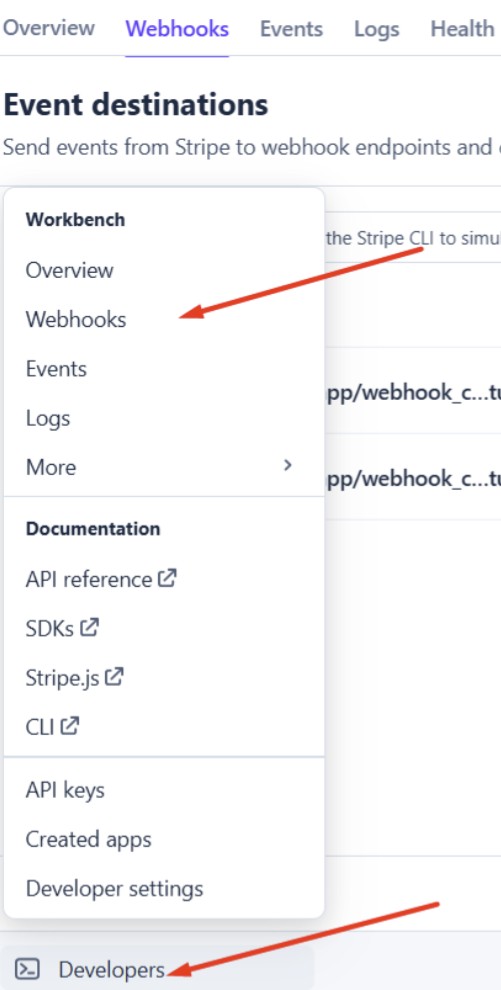
3. Click Add endpoint.
4. Enter the following details:
- Endpoint URL: Paste the webhook URL generated by Visiopt.
- Events: For Sales tracking select payment_intent.succeeded.
- Use the appropriate/current Stripe API version when prompted.
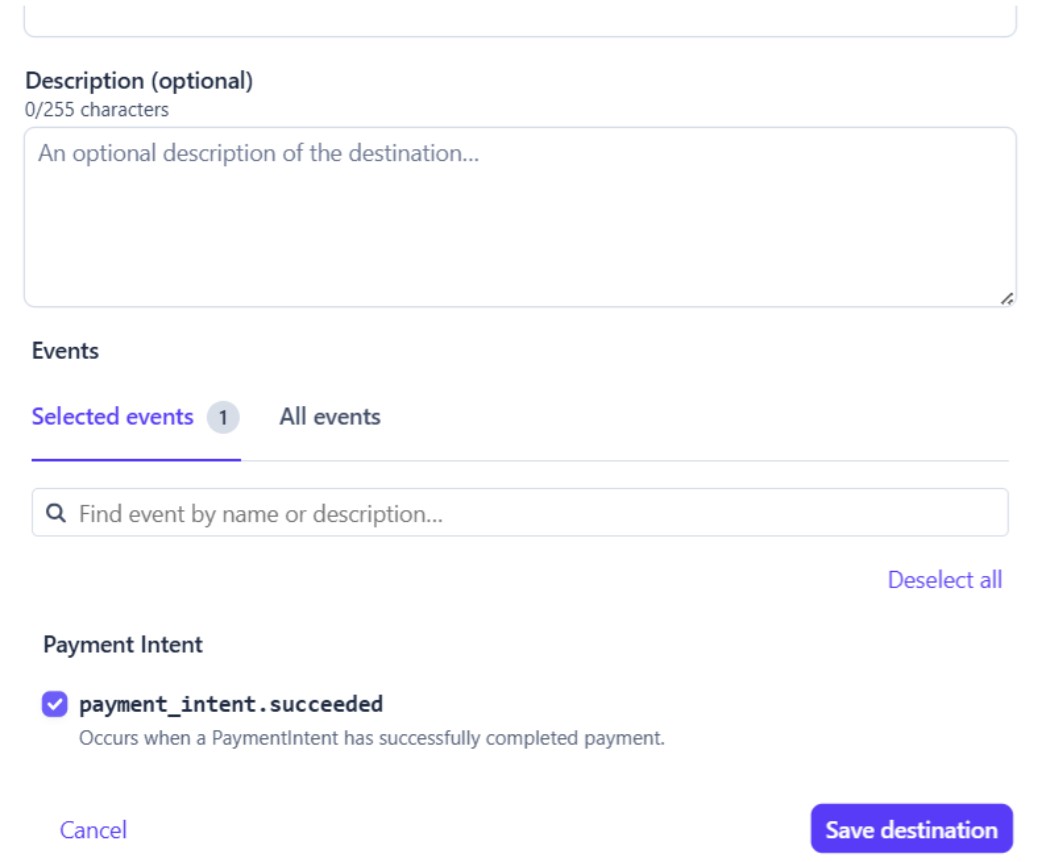
5. Click Add endpoint.
Your Stripe webhook is now connected to Visiopt and ready to send events.
Some carts and processors will send a separate webhook notification for the main sale and each upsell purchased. This will cause multiple conversions to be recorded.
For simple instructions to stop this click HERE.
Comments
0 comments
Please sign in to leave a comment.