Opt-in: Use for lead/signup/opt-in events where no purchase has occurred.
Sale: Use for purchase/transaction events where revenue is generated.
1. To create a webhook, go to the Settings page > Payment Processing and Carts > Kartra
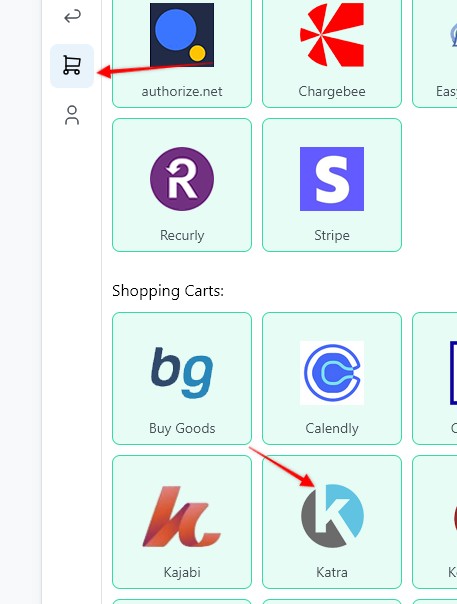
2. Enter a Webhook name, select the Funnel to associate the webhook with, hit Save and Generate Webhook URL

3. To track Opt-in conversions, expand the Webhook Rules section and check the Enable Rules checkbox. Under Conversion Type, select Opt-in (Lead).
4. Copy the webhook URL

5. Log in to Kartra, then in the left side bar click "My integrations"
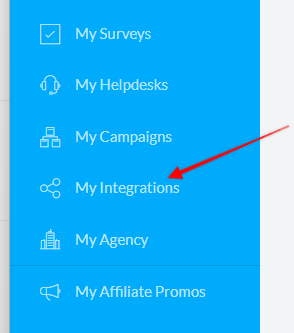
6. Click "API"
7. Paste the webhook URL copied from Visiopt.
- Select Contact fills form
- Select Opt-in Form
- Click add button
Learn how to add the VisiSmart code to Kartra checkout page
1. Log in to Kartra, then in the left side bar click "Pages"
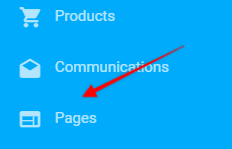
2. Find your checkout page, an hit edit
3. Then hit "Settings" in the left sidebar, and paste in the VisiSmart code in the "Embed facebook ads tracking code" textbox
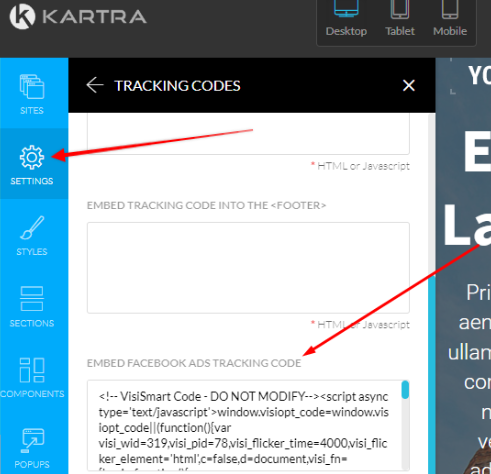
4. If tracking doesn't work when set up as shown above, then try to add the VisiSmart script to the body of the page.
Some carts and processors will send a separate webhook notification for the main sale and each upsell purchased. This will cause multiple conversions to be recorded.
For simple instructions to stop this click HERE.
Comments
0 comments
Please sign in to leave a comment.